

App settings
The one screen the Console opens on — five sections, and everything an application has is in one of them
App Settings is where an application is configured, and it is the screen the Console opens on. Five sections down the left; the one you are reading about here is General.
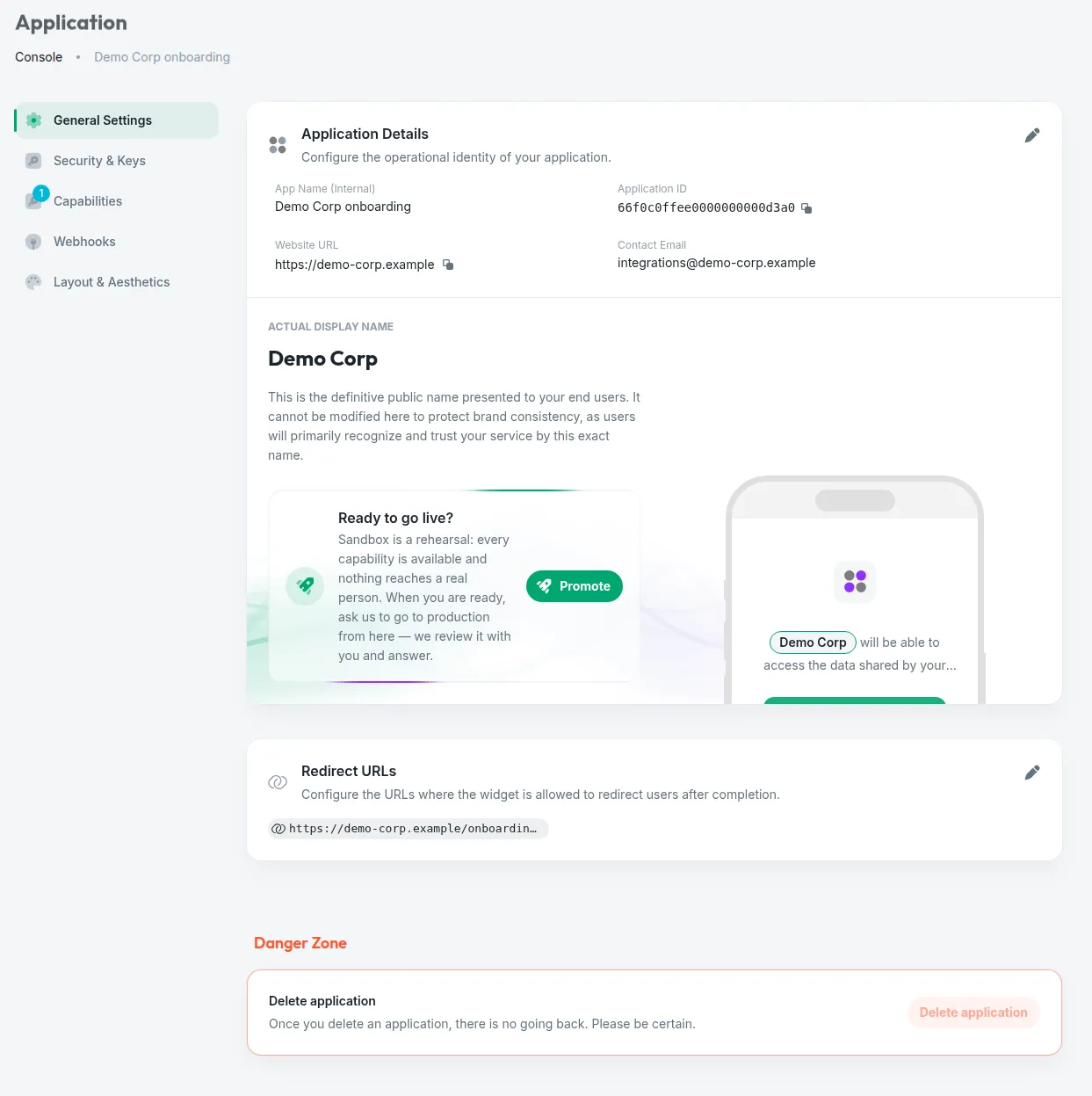
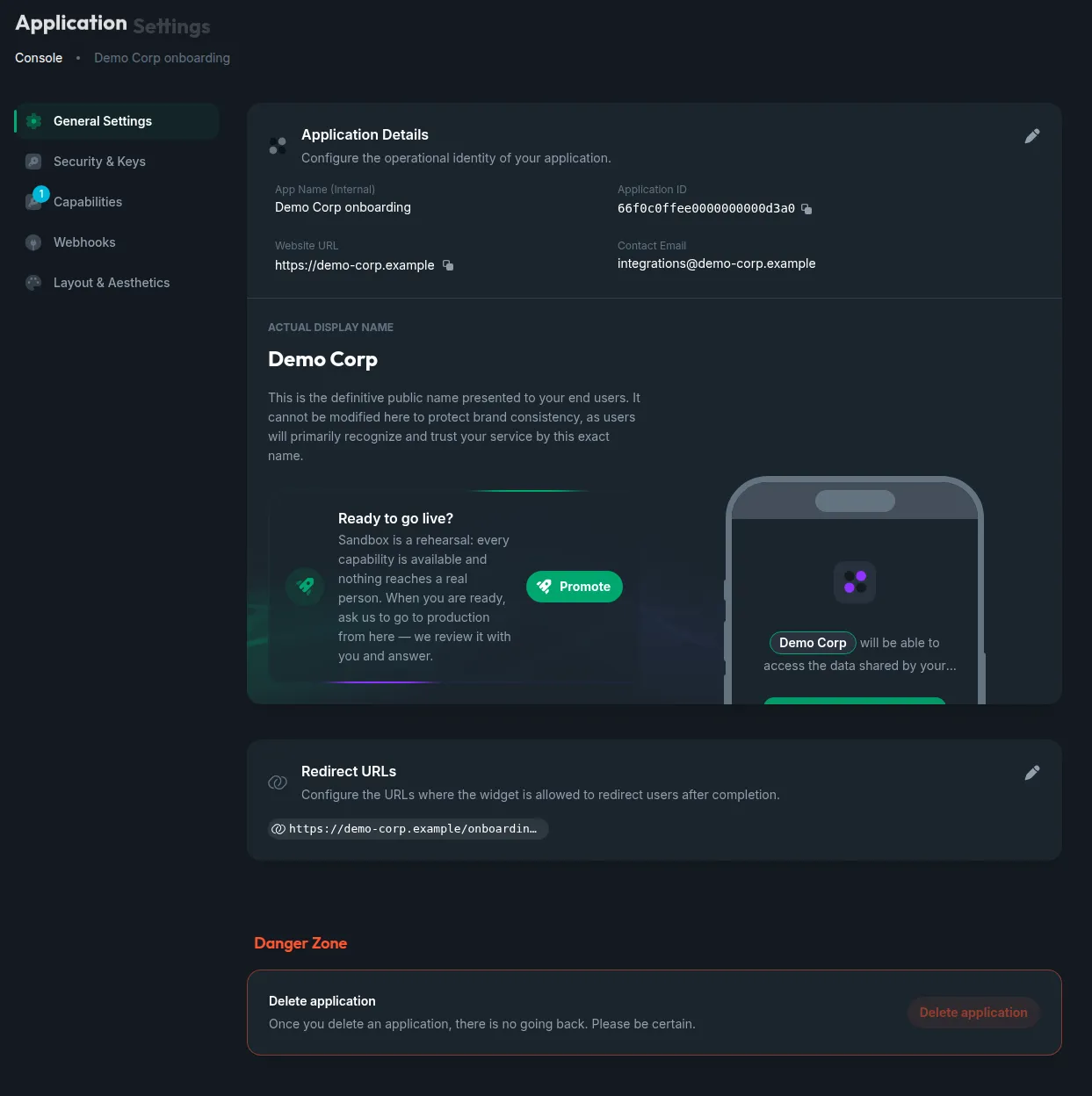
Layout & Aesthetics, the fifth, is how the widget looks to your end users — colours, logos, the shape of things. It is the section that freezes when you ask for production.
Every section carries its own guided tour — the book icon in the toolbar replays it — and its own docs pill, which opens the page of this documentation that covers it.
Application details
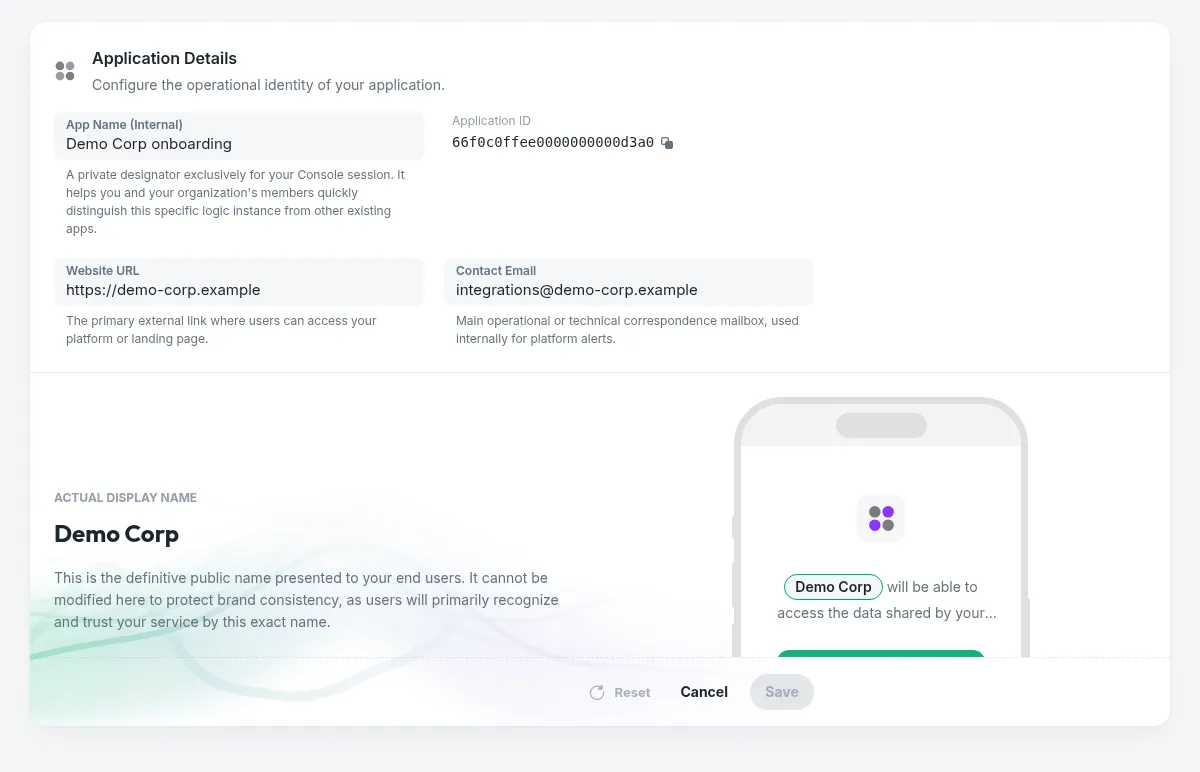
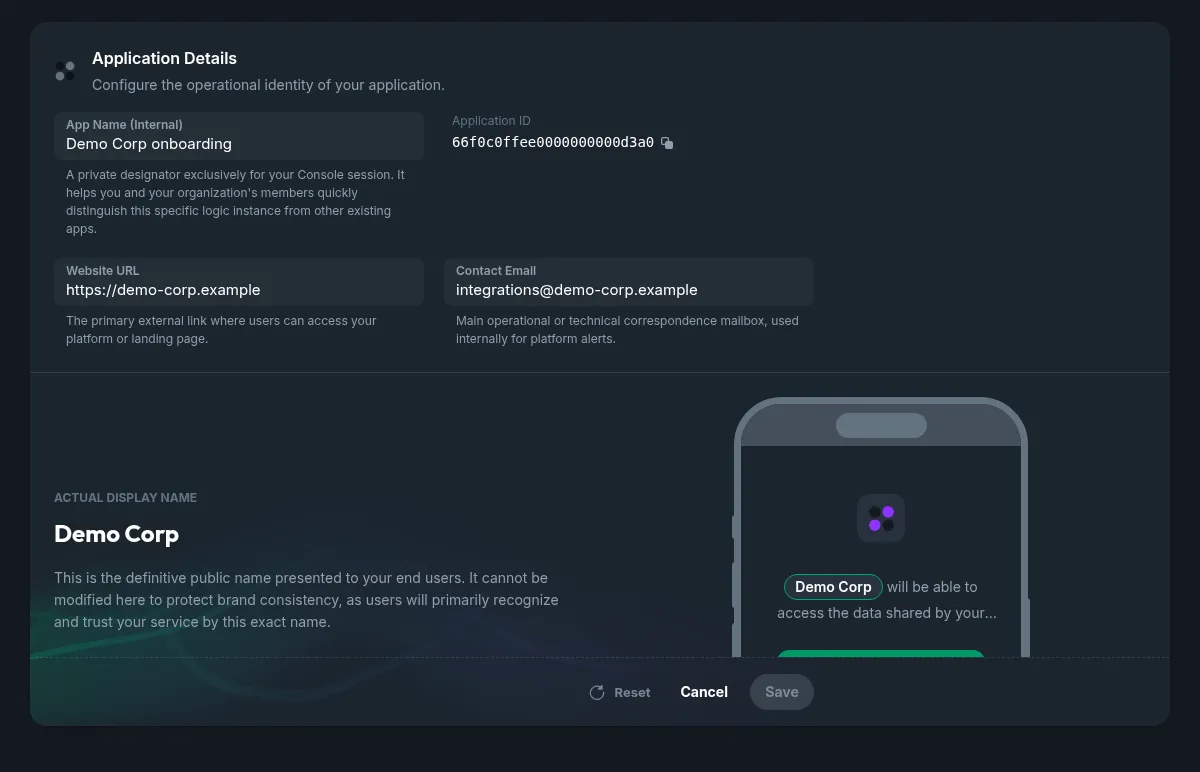
The pencil opens the card; Save and Cancel appear at its foot.
Why the public name cannot be edited here. It is what your end users read on the consent screen, and they recognise your service by that exact string — the phone preview beside it shows the sentence they actually see. Changing it is a decision with a reader on the other side, so it goes through us: write to support@infonite.tech.
Redirect URLs
Where the widget is allowed to send someone back to when they are done. A URL that is not on this list is not a destination — that is the whole point of the list, and it is what stops a redirect being pointed somewhere it should not go.
These are not webhook endpoints, and the two are often confused. A redirect moves your customer’s browser when they finish in the widget; it carries no data and does not happen if they close the tab. A webhook is a call from our servers to yours when the event fires. They are configured on different sections for that reason — the difference, drawn.
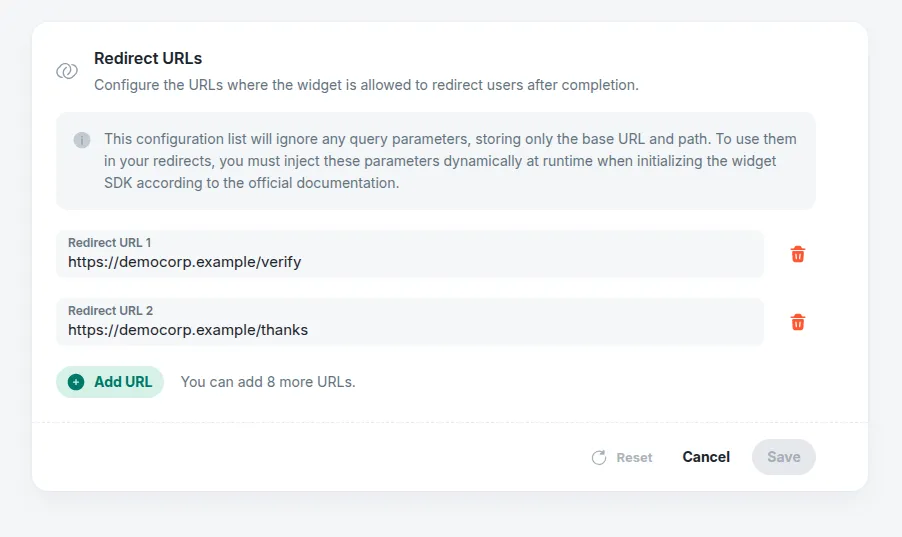
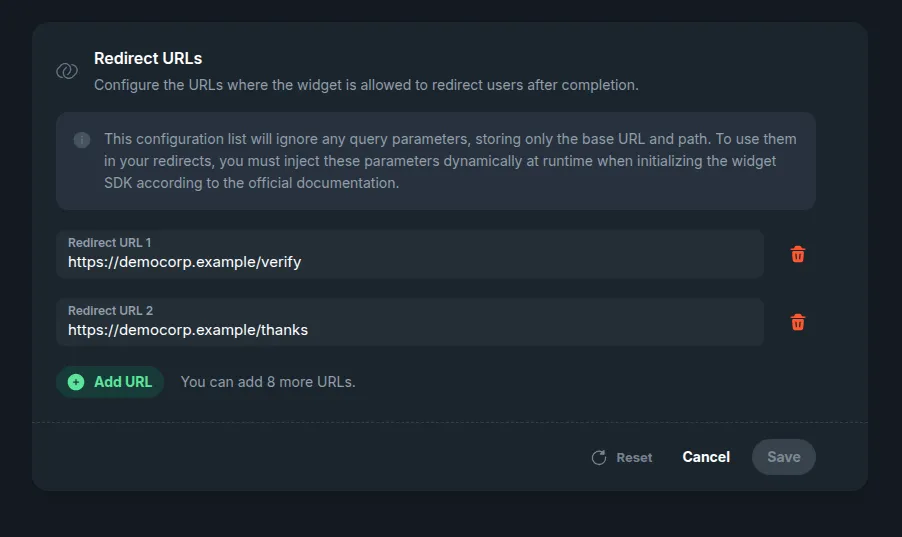
Query parameters are stripped. Only the base URL and the path are stored, so …/done?case=A-1029 is kept as …/done. Anything you need to carry back is added when you start the session, not here — the flows’ own guide covers that in redirects.
A new application starts with one entry already on the list, https://infonite.dev/, so a first test session has somewhere to end before you have configured anything. It is an ordinary entry: remove it whenever you like, and it does not come back.
Up to ten per application, added and removed one at a time. The change takes effect as soon as you save — and if saving is the part that does not work, it is worth ruling out a network policy on your own machine before anything else.
The danger zone
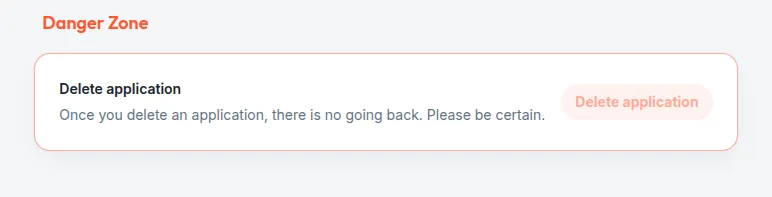
Deleting an application cannot be undone, and it is not a way to pause one. Everything recorded under it goes with it: its secrets, its keys, its webhook endpoints and rules, its executions and sessions, and the credentials it tokenized. Nothing is recoverable afterwards, by you or by us.
If what you want is for an application to stop running while keeping everything it has, that is a lock, not a deletion — write to support@infonite.tech. A locked application stops running and its settings become read-only in the Console; its data and its configuration stay exactly where they are (what locked means).